Pick your key.
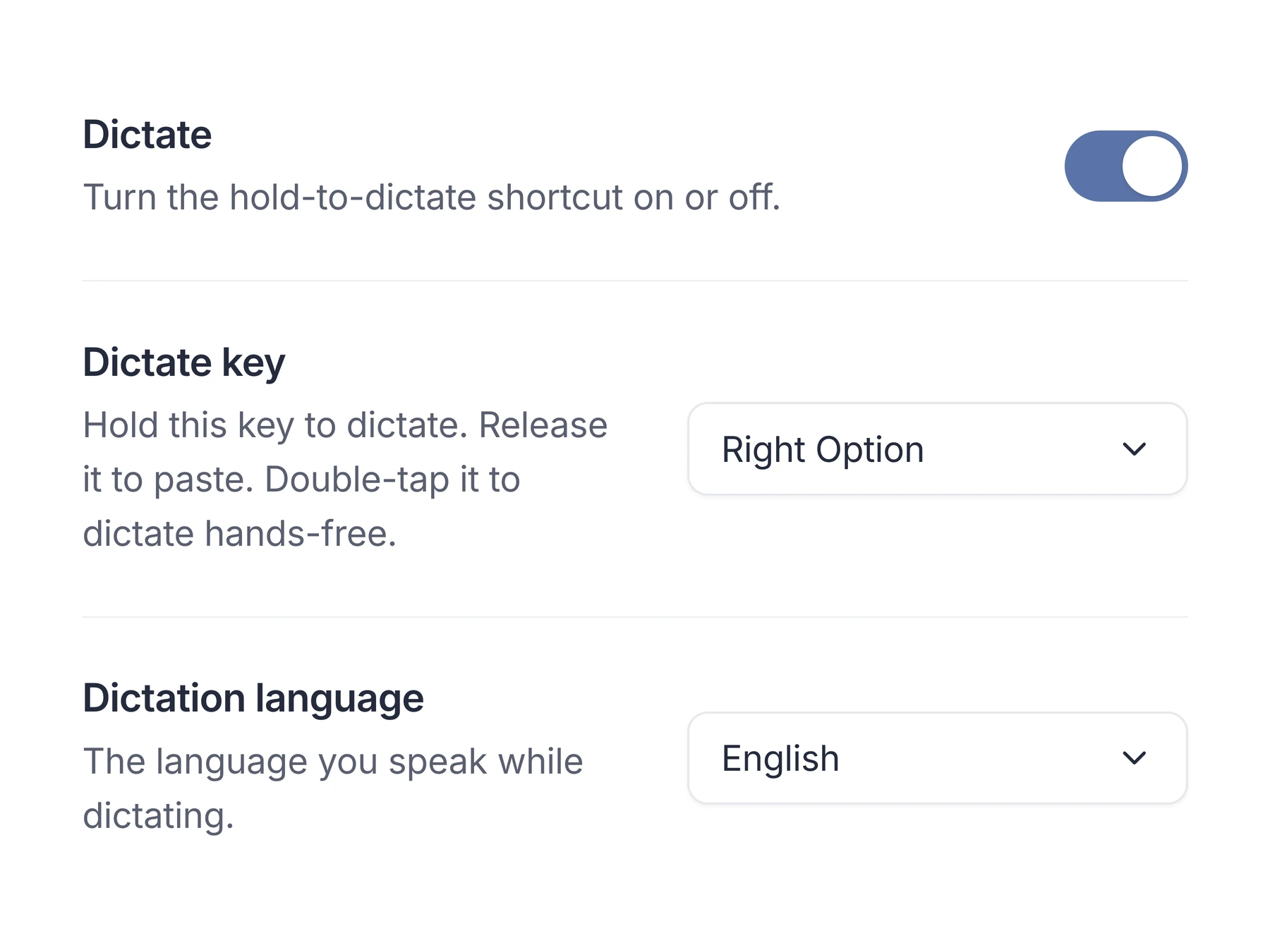
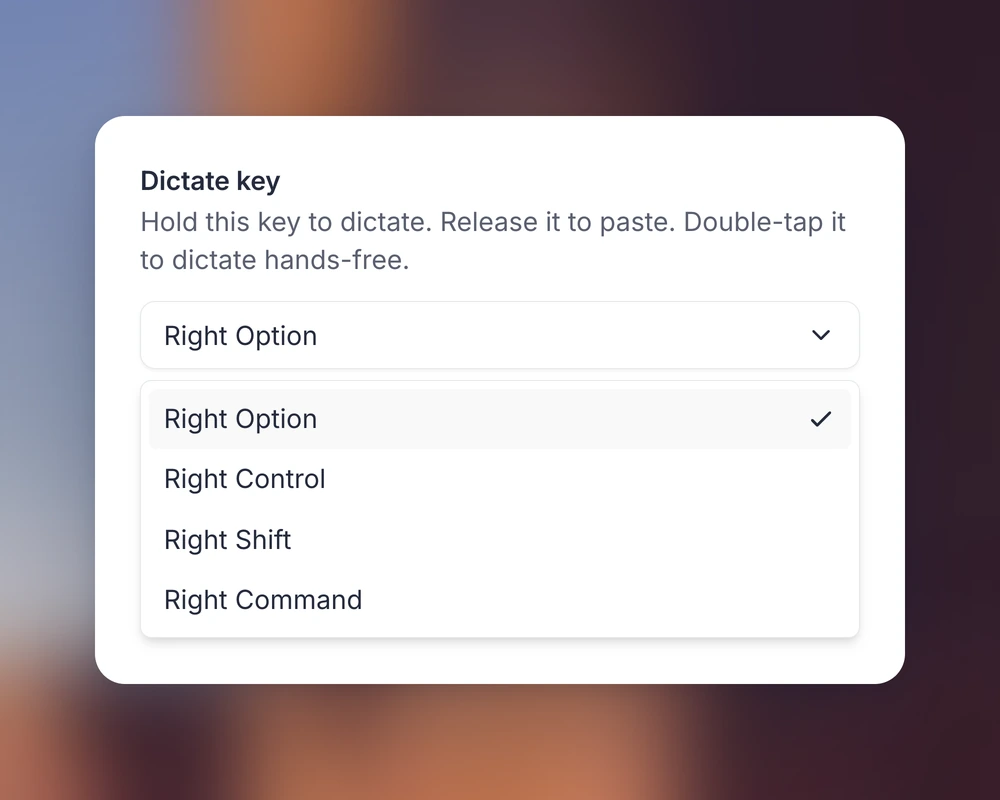
Choose a dictate key in the desktop app settings.

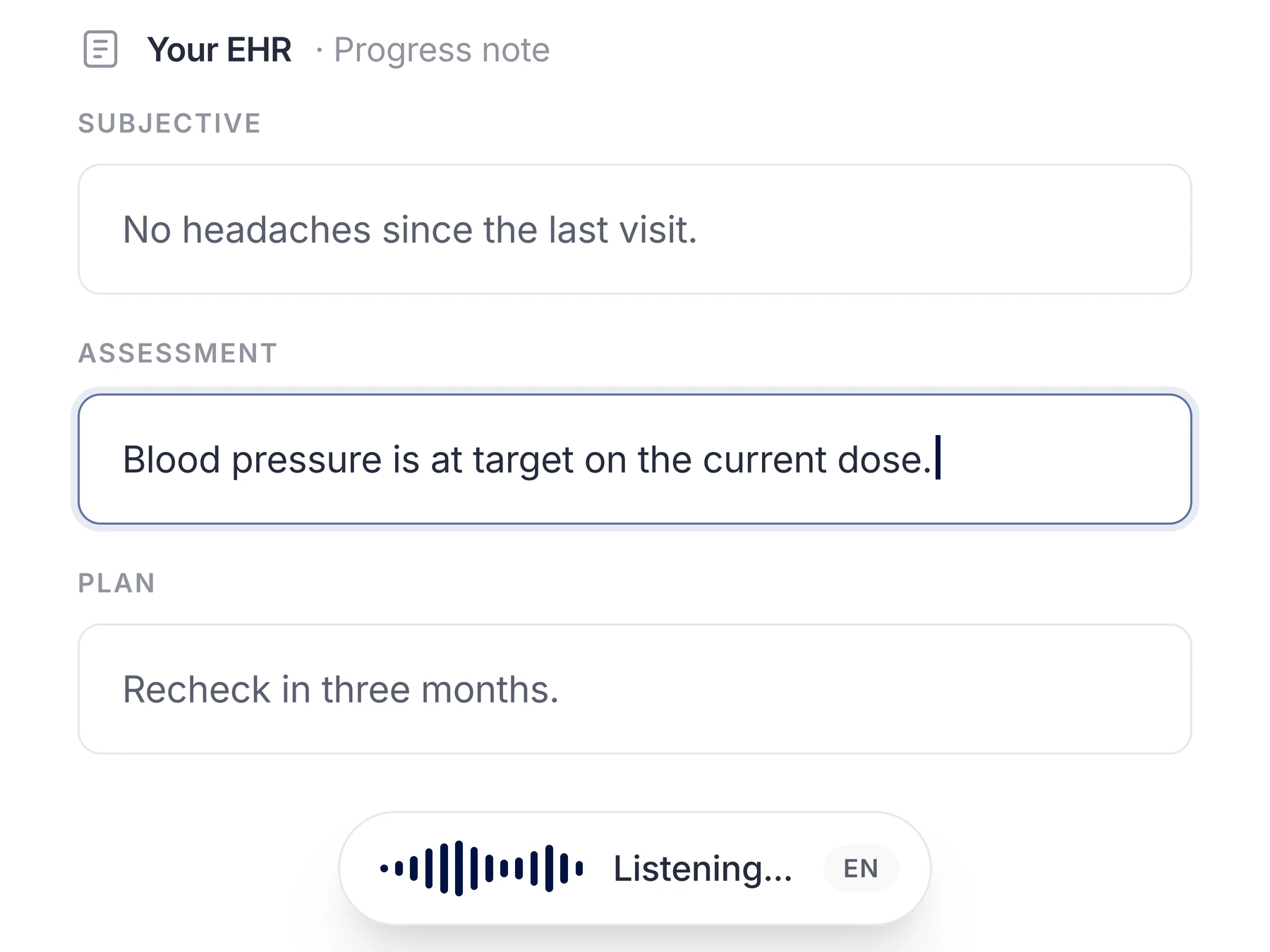
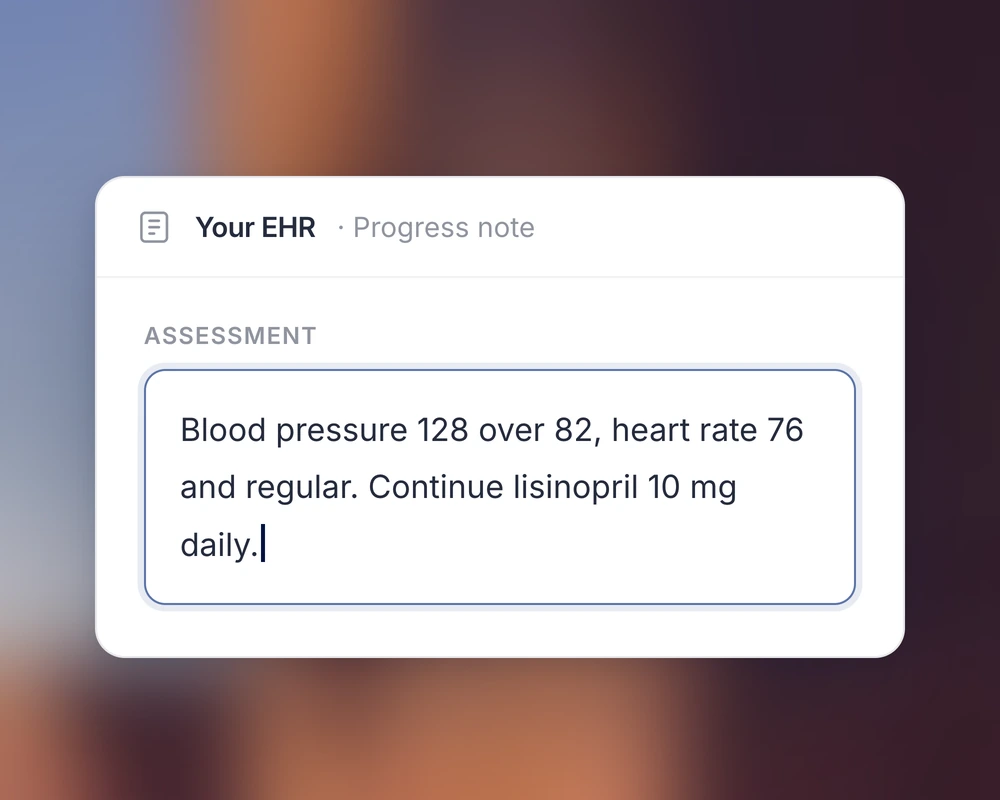
Your EHR · Progress note
Patient returns for follow-up of hypertension. Home readings average 128/82 mm Hg on lisinopril 10 mg daily. No dizziness, no cough. Continue current regimen and recheck in 3 months.
Email · Referral
Dear Dr. Reyes, I am referring Ms. Alvarez for evaluation of persistent right shoulder pain, 6 weeks, with persistent symptoms despite NSAIDs and physical therapy. Imaging and my last two notes are attached. Thank you for seeing her.
Patient portal · Reply
Your thyroid test results are within the reference range. We’ll discuss them at your appointment next month. Send a message if you have questions before then.
Press and hold the button. Using keyboard navigation, tap Enter to start and stop.
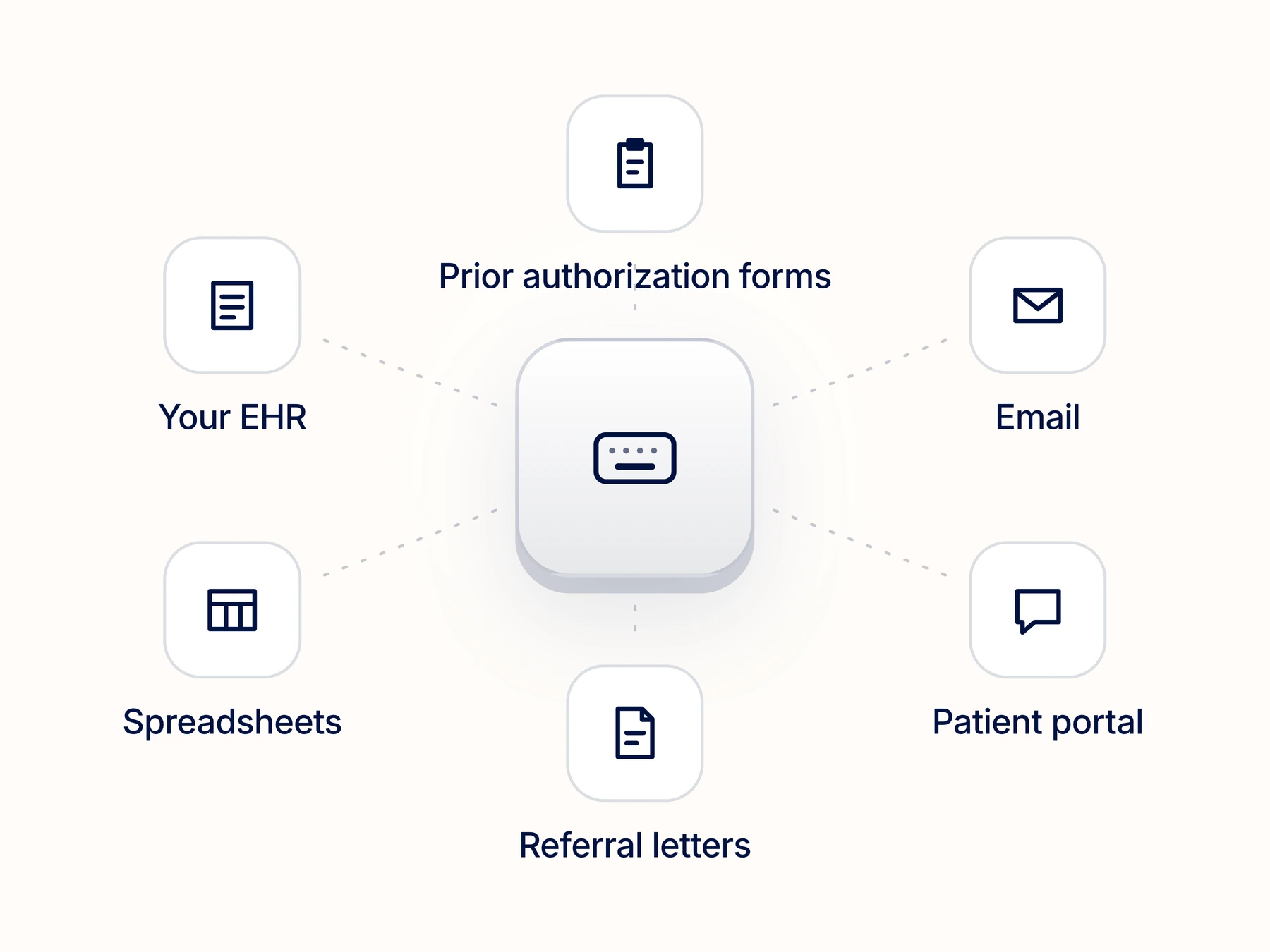
Hold your key, say the sentence, let go. The text lands in the field you had selected, like an EHR note, a referral letter, or a portal message.
No window to switch to. The cursor is already where the text goes.
Choose a dictate key in the desktop app settings.
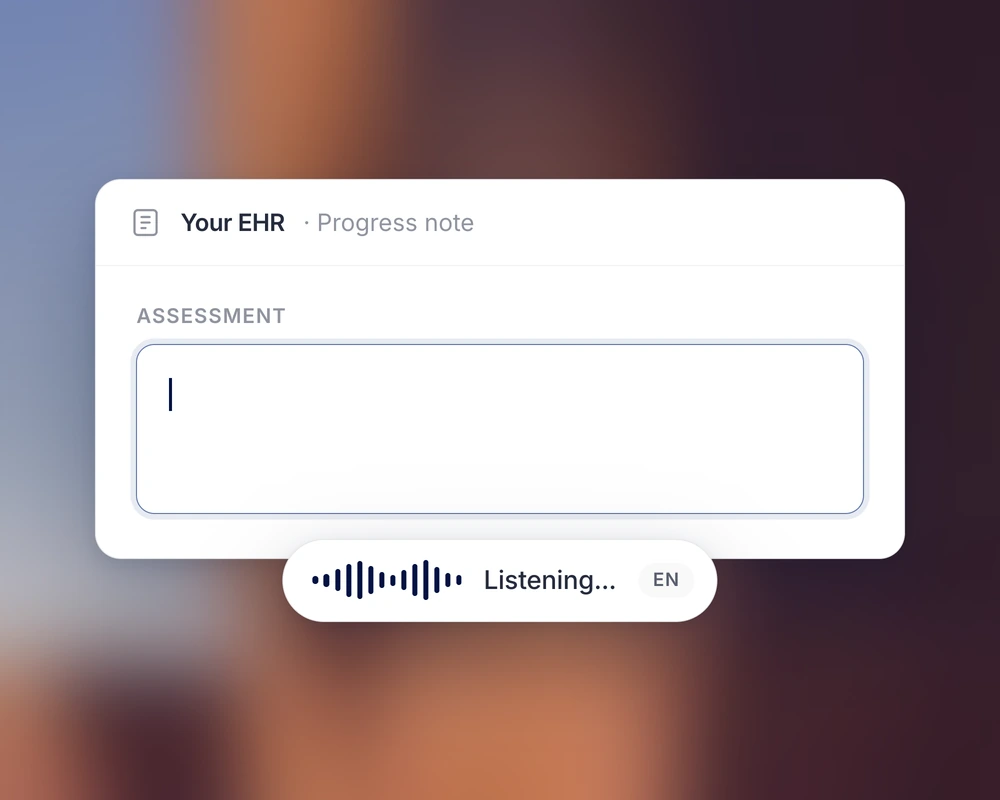
Select the field where you want the text, then hold your key and dictate.
Release the key to insert the text. Review it before saving or sending.
Dictation destinations
Select a text field in an application approved by your practice.
Use the selected field for a progress note, referral, or message to your patient.
Nothing to copy, nothing to paste, nothing to switch between.
“I write in six different systems a day. I do not type in any of them anymore.”
See dictated text inserted into an EHR field, an email, and a portal message.
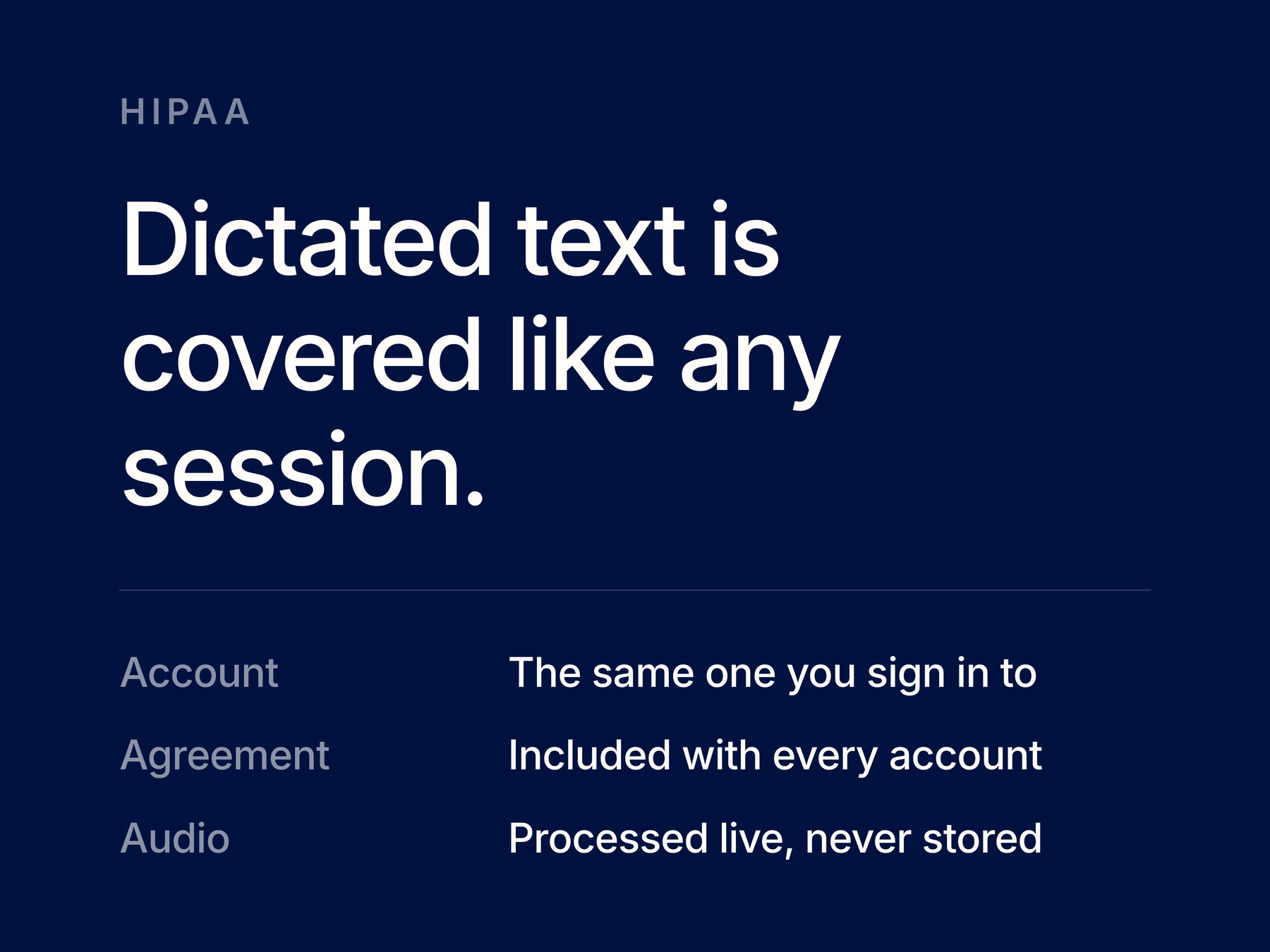
A signed Business Associate Agreement (BAA) is included with your account.
Download the desktop app. Install ClinicFrame on your computer, then choose a key to control dictation.
Download the appFree with your account. Mac and Windows.Use a session to generate a structured note, then choose its format.
Straight answers about how ClinicFrame works, day to day.
Dictate Anywhere transcribes your speech and inserts the text into the selected field. Hold your chosen key to dictate, then release it to paste. Use a Dictation session inside ClinicFrame when you want a structured clinical note from your narration.
Yes. Dictate Anywhere runs in the ClinicFrame desktop app for Mac and Windows. Hold your key, speak, and let go, and the text lands in the field you had selected in another application, like your EHR or a patient portal. Every account includes a signed BAA.
Dictate Anywhere pastes text into the field you select. It does not require an EHR integration. Check it in the applications and fields your practice uses before relying on it for charting.
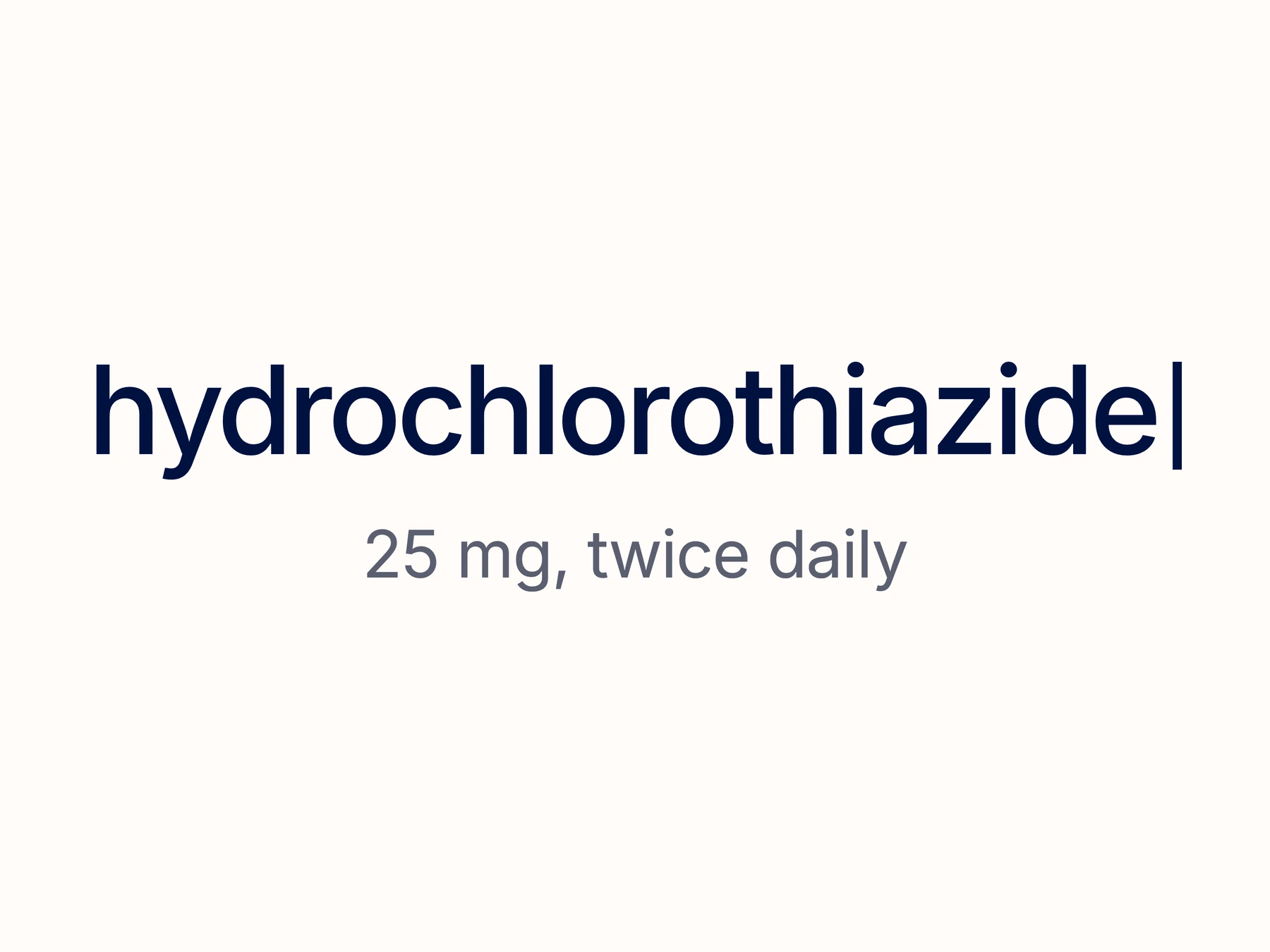
Dictate Anywhere uses the transcription engine from ClinicFrame sessions and supports clinical terminology in English and Spanish. You choose a key in the desktop app to control dictation. Compare the results in your usual fields, including how each tool handles medication names and doses.
Voice training is not required. Install the desktop app, grant its required permissions, and choose your dictate key. Test the result in a blank field before using it in a chart.
Dictate Anywhere requires the ClinicFrame desktop app for Mac or Windows. Follow your organization’s process for installing software and granting microphone and application permissions.
Choose your dictate key in the desktop app settings. On Mac, the options include Right Option, Right Control, Right Shift, and Right Command. Check the options shown on your computer. Hold the key to dictate and release it to paste.
Double-tap your dictate key to keep dictation active while you scroll the chart. Tap it again to finish and paste. Check the selected field before inserting the text.
Your ClinicFrame account includes a signed Business Associate Agreement (BAA). Use applications your practice has approved for patient information. The agreement with ClinicFrame does not replace the privacy and security requirements for the destination application.
More on thisClinicFrame AI medical scribeAlternatives to Microsoft Dragon CopilotIs an AI scribe HIPAA compliant?Do you need a BAA?